

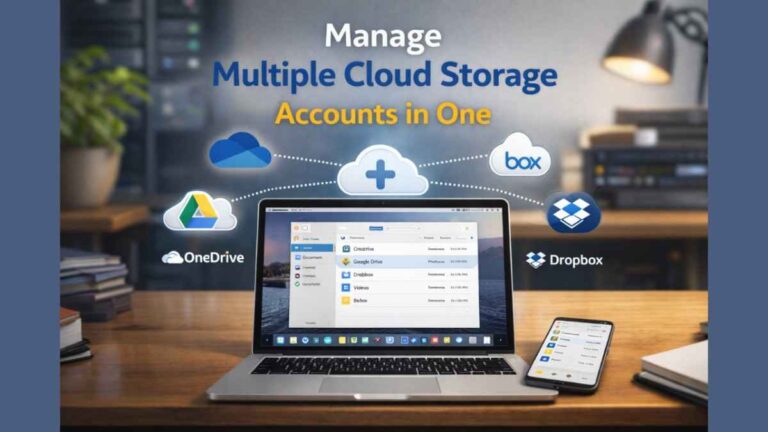
Many people use more than one cloud storage account for work, school, or personal files. One account may hold photos, another may store documents, and a third may be used for backups. Managing all of them separately can feel confusing and time-consuming, especially for beginners.
This article explains simple ways to manage multiple cloud storage accounts in one place. Everything is written in clear language, with practical examples, so you can stay organized without stress.
Why Should You Manage Cloud Accounts?
Managing cloud accounts helps you save time and avoid mistakes. When files are spread across different services, it is easy to forget where something is stored or upload the same file twice. A single management view keeps everything clear and easy to track.
It also helps with safety and storage planning. You can see which accounts are full, which are underused, and where important files live. This makes daily file work smoother and more reliable.
Manage & Sync All Clouds in One Place
Handling each cloud account separately often means switching apps or browser tabs. A unified setup lets you access, upload, and organize files from one screen. This is especially helpful for beginners who want a simple routine.
Syncing also helps keep files updated across accounts. When a file changes in one place, the updated version can appear in another, reducing confusion and manual work.
Multi-cloud Management
Multi-cloud management means using one system to control many cloud accounts. Instead of treating each storage service as separate, you bring them together into one workflow. This makes file handling easier and more predictable.
Below are the key parts that make multi-cloud management useful for everyday users.
Built into Finder and Explorer
Many users prefer working inside familiar tools like Finder on macOS or Explorer on Windows. When cloud accounts appear like normal folders, file handling feels natural. You can drag, drop, copy, and rename files just like local files.
This setup also helps when you want quick access. For example, users often look for ways to add one drive to finder so they can avoid opening separate apps every time.
As Many Accounts as You Need
A good setup allows you to connect multiple accounts without limits. You may have personal storage, work storage, and shared folders, all under one view. This keeps personal and professional files organized without mixing them up.
Having all accounts visible also helps you move files between them more easily.
Cloud Storage Encryption
Encryption keeps your files safe by locking them with a secret key. Even if someone gains access, they cannot read the data without permission. This is important when managing several accounts in one place.
For beginners, built-in encryption removes the need to understand complex security steps. Your files stay protected quietly in the background.
Cloud Storage Manager for Everyone
A cloud storage manager should feel simple, not technical. Clear menus, readable folder names, and easy actions make it friendly for all users. Beginners should not need special training to use it.
When tools feel familiar, people are more likely to stay organized and avoid errors.
Practical Use Cases
Managing multiple cloud accounts is helpful in daily life. Students can separate school files from personal photos while still accessing everything easily. Small teams can share documents without emailing attachments back and forth.
It is also useful for backups. Important files can be copied to more than one account, adding an extra safety layer in case one account has problems.
Tips for Smooth Operations
Start by giving each cloud account a clear purpose. For example, one for documents, one for media, and one for backups. Clear roles prevent clutter and confusion.
Use simple folder names and avoid deep folder nesting. Regularly clean unused files so storage stays manageable and easy to navigate.
Best Way to Manage Multiple Cloud Storage Accounts
The best approach is one that fits your daily habits. Many users prefer accessing cloud files directly from their computer instead of web browsers. This feels faster and more familiar.
For people using macOS, connecting storage through Finder can be very convenient. People often search for ways to add dropbox to finder on mac so they can work with cloud files like local files, without extra steps.
Alternative Tools for Managing Storage Accounts
Some tools focus on connecting and managing multiple cloud services. Below is a simple comparison to help beginners understand their differences.
| Tool | Best For | Key Limitation |
| MultCloud | Basic cloud transfers | Limited free features |
| CloudHQ | Syncing between accounts | Can feel complex |
| CloudFuze | Team file management | Higher cost |
| InClowdz | Account visibility | Fewer automation options |
MultCloud
Pros
MultCloud allows users to move files between cloud accounts from one place. It works well for basic transfers and simple syncing tasks.
Cons
The free version has limits on data transfer. Beginners may need time to understand some menu options.
CloudHQ
Pros
CloudHQ focuses on syncing data between different accounts. It helps keep files updated across multiple locations.
Cons
The setup process can feel confusing for new users. Some features may be more than beginners need.
CloudFuze
Pros
CloudFuze is useful for teams that manage shared files. It supports large data transfers and organized migrations.
Cons
It may be expensive for personal users. The interface can seem bulky when handling simple actions.
InClowdz
Pros
InClowdz provides a clear overview of connected accounts. It helps users see where files are stored.
Cons
Automation features are limited. Advanced syncing options may be missing.
Conclusion
Managing multiple cloud storage accounts does not have to be difficult. With the right setup, all your files can live in one clear and organized space. It helps streamline tasks, minimizes errors, and simplifies everyday work.
By using simple tools, clear folder structures, and familiar file managers, even beginners can manage cloud storage with confidence. A little planning goes a long way in keeping your digital life tidy and stress-free.
Frequently Asked Questions
How Do I Manage Multiple Cloud Accounts on macOS?
You can connect cloud accounts directly to Finder or use a management tool. This lets you access files without opening multiple apps. Everything appears in one familiar place.
How can files be moved from one cloud storage to another on macOS?
Yes, file copying is possible when accounts are connected together. You can drag files between folders just like local files. This saves time and avoids repeated downloads.
How Do I Consolidate My Cloud Accounts?
Start by deciding which account will hold most of your files. Move important data into that account and keep others for backups or sharing. This reduces clutter and confusion.
Should I Have Multiple Cloud Backups?
Having more than one backup is a good safety step. If one account has an issue, your files are still safe elsewhere. Just make sure backups are updated regularly.
READ ALSO: Understanding Menopause Care in the United States
